
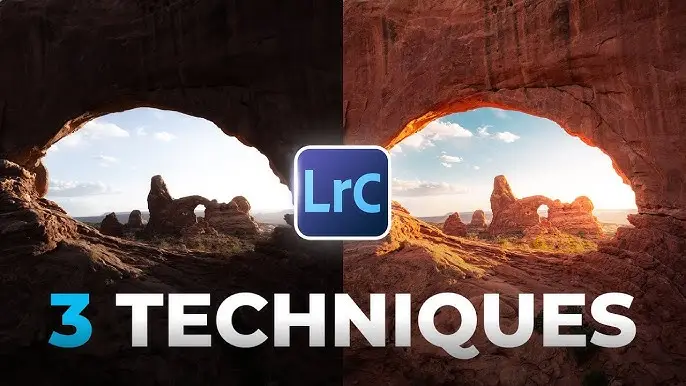
Essential Tools and Techniques for Lightroom: 2025 Guide
Adobe Lightroom continues to be one of the most powerful photo editing tools in 2025, whether you’re a beginner learning the ropes or a professional perfecting your workflow. This all-in-one photo editing and management software offers everything from basic adjustments to advanced creative control. In this comprehensive guide, we’ll explore the essential tools and techniques for Lightroom, dive deep into Lightroom presets, and discuss Lightroom editing tips and tutorials to help you achieve professional-level results—on both desktop and mobile Lightroom versions.
Understanding the Essential Tools and Techniques for Lightroom
Before diving into advanced features, it’s crucial to master Lightroom’s core editing tools. Each tool in Lightroom is designed to enhance your photos while maintaining a non-destructive workflow—meaning your original image remains untouched. Here’s a breakdown of the essential Lightroom tools every photographer should understand in 2025:
1. The Basic Panel
The Basic panel is where most edits begin. It includes controls for exposure, contrast, highlights, shadows, whites, and blacks. These sliders help correct overall brightness and balance the light within your photo. Adjusting white balance and tint can fix color temperature issues and give your image the desired tone.
Pro Tip: Use the Auto feature as a starting point—it often provides a balanced base for manual fine-tuning.
2. Tone Curve Tool
The Tone Curve allows for precise contrast adjustments. By manipulating the curve, you can create subtle mood changes or strong cinematic looks. This tool is ideal for photographers who want to add depth and style to portraits or landscapes.
3. HSL / Color Panel
The HSL (Hue, Saturation, and Luminance) panel lets you control individual colors. This tool is especially powerful for color grading and creative color enhancement, helping you achieve cohesive tones across your gallery or Instagram feed.
4. Detail Panel (Sharpening and Noise Reduction)
In this panel, you’ll find options for sharpening your images and reducing noise—crucial for improving image quality, especially when working with high ISO photos or smartphone captures.
Lightroom tip: Always zoom to 100% when applying sharpening to avoid overdoing it.
5. Masking Tool (Local Adjustments)
Lightroom’s Masking feature got a major upgrade in recent versions. You can now use AI-powered selections like Select Subject and Select Sky, allowing you to edit specific areas of your photo with incredible precision.
Example: Brighten faces or darken skies without affecting the rest of the image.
6. Crop and Straighten Tool
Composition plays a key role in photo storytelling. The Crop Overlay tool helps reframe your shot and correct perspective. Lightroom even offers guides like the Rule of Thirds, Golden Ratio, and Diagonal, assisting in perfect framing.
Mastering Lightroom Presets
Lightroom presets are pre-made adjustment settings that can instantly transform your photos. They’re perfect for maintaining a consistent aesthetic or speeding up your workflow.
Benefits of Using Presets:
- Achieve consistent edits across a project or social media feed.
- Save time by avoiding repetitive edits.
There are countless Lightroom presets for free download, as well as premium packs tailored to different photography styles—such as portrait, travel, moody tones, or cinematic looks.
Pro Tip: Always tweak presets to suit your photo. Lighting conditions and camera sensors differ, so a one-click preset rarely works perfectly for all images.
Lightroom Mobile: Tools and Techniques on the Go
In 2025, Lightroom Mobile has become nearly as powerful as its desktop counterpart. Whether you’re editing RAW images from your DSLR or mobile snapshots, you can enjoy a seamless editing experience.
Key Mobile Features:
- Selective adjustments: Edit specific areas using radial or brush masks.
- Presets sync: Apply the same desktop presets directly on your phone.
- Cloud storage: Edit anywhere without losing your progress.
- Camera integration: Capture RAW photos directly from the app.
If you’re just starting, look for mobile Lightroom courses for beginners that guide you through the essentials—from importing images to mastering color grading on your phone.
Lightroom Courses and Tutorials for 2025
Whether you’re self-taught or prefer structured learning, taking a Lightroom course can significantly improve your skills. The best part? Many excellent Lightroom courses are free and available online.
Best Online Lightroom Courses to Try:
- Adobe’s Official Lightroom Course (Free Download) – A complete introduction to all Lightroom tools, straight from the source.
- Skillshare & Udemy Lightroom Classes – Step-by-step tutorials with practical editing projects.
- YouTube Lightroom Tutorials 2025 – Channels like PiXimperfect and Phlearn offer deep dives into tools and techniques.
- Mobile Lightroom Course Free Download – For creators who primarily edit on smartphones.
Pro Tip: Start with “Lightroom tutorial 1” beginner videos, then gradually move to advanced editing topics like light manipulation and preset customization.
Lightroom Editing Tips for Beginners and Experts
Even seasoned photographers discover new Lightroom editing techniques over time. Here are some Lightroom best edit tutorial insights to help you stand out:
1. Work with Non-Destructive Edits
Every edit in Lightroom is stored as metadata. You can always revert to the original or create different versions using the Virtual Copy feature.
2. Use Keyboard Shortcuts
Learn key shortcuts like:
- D for Develop module
- R for Crop
- K for Brush tool
- Cmd/Ctrl + E to export
These shortcuts dramatically speed up your workflow.
3. Use Lens Correction and Transform Tools
These tools automatically correct distortion, vignetting, and perspective issues, especially useful for architectural or wide-angle shots.
4. Experiment with Profiles and LUTs
Lightroom’s Camera Profiles and LUTs (Look-Up Tables) let you achieve unique color styles that go beyond basic adjustments—perfect for cinematic or film-inspired tones.
5. Sync Settings Across Multiple Photos
When editing multiple photos from the same shoot, use the Sync button to apply identical edits instantly. This feature ensures consistency and saves hours of manual work.
Tools Lightroom: A Deep Dive
To truly master Lightroom, you need to understand not just what each tool does but how to use it efficiently. Below are some often-overlooked yet powerful Lightroom tools explained in full detail:
Spot Removal Tool
Perfect for retouching portraits or cleaning up unwanted elements like dust or blemishes.
Graduated and Radial Filters
Used for controlled adjustments like enhancing skies, adding vignettes, or focusing attention on the subject.
Histogram Tool
The histogram provides a visual overview of exposure. Watch it to prevent clipping highlights or crushing shadows during editing.
Sync and Copy Settings
Allows batch editing of similar photos—ideal for event photographers or content creators.
How to Use Lightroom 2025: A Step-by-Step Tutorial
If you’re new to Lightroom, here’s a simplified Lightroom tutorial to get started:
- Import Your Photos: Open Lightroom and click Import. Select the images from your device or camera.
- Organize Collections: Create folders or smart collections for better management.
- Apply Global Adjustments: Use the Basic panel to adjust exposure, contrast, and white balance.
- Enhance with Masks: Use AI masks to highlight your subject or modify backgrounds.
- Apply Presets: Test out different looks using built-in or custom Lightroom presets.
- Fine-Tune with the HSL Panel: Adjust specific color ranges for mood and harmony.
- Sharpen and Reduce Noise: Perfect your final image with clarity and detail enhancements.
- Export Your Image: Save your edit in the desired format (JPEG, PNG, or TIFF) with optimized quality for web or print.
Future of Lightroom Editing in 2025
The evolution of Lightroom continues with AI-powered enhancements and cloud integration. Features like content-aware removal, smart masking, and adaptive presets are transforming how creators work.
AI Presets can now analyze image type (portrait, landscape, food, etc.) and apply intelligent edits automatically. Meanwhile, Lightroom Cloud Sync ensures all your edits are accessible across devices—whether on desktop, tablet, or mobile.
As Tools and Techniques for Lightroom 2025 evolves, so should your editing techniques. Keep exploring new tools, download the latest Lightroom presets, and follow Lightroom best edit tutorials to stay ahead.
Final Thoughts
Mastering the essential tools and techniques for Lightroom in 2025 is more than just knowing sliders—it’s about understanding how each adjustment affects your visual story. Whether you’re using Tools and Techniques for Lightroom for quick social media edits or the desktop version for professional retouching, the key lies in experimentation and practice.
Invest time in Lightroom courses for beginners, try out free presets, and learn from real-world Lightroom tutorials. Over time, your workflow will become smoother, your edits more refined, and your photos more captivating.
In short, Tools and Techniques for Lightroom remains an indispensable creative companion for photographers and digital artists alike. Keep learning, keep editing, and let your creativity shine—because in 2025, the possibilities in Tools and Techniques for Lightroom are limitless.