
Role of AI in Lightroom 2025: Smart Editing Tools & Presets Guide
The Role of AI in Lightroom has revolutionized how photographers and creators approach editing in 2025. With every new update, Adobe Lightroom integrates deeper artificial intelligence capabilities that simplify complex tasks, enhance creativity, and save valuable time. Whether you’re a beginner exploring Lightroom AI presets or a professional testing Generative Fill for seamless edits, AI has become the invisible assistant that empowers you to produce stunning visuals faster than ever.
In this comprehensive guide, we’ll explore how AI in Lightroom works, what the latest AI features can do, and how to use AI in Lightroom Mobile and Classic effectively. You’ll also learn how these innovations influence Lightroom presets, smart object removal, and portrait retouching.
1. Understanding the Role of AI in Lightroom
The integration of artificial intelligence in Lightroom started a few years ago, but 2025 marks a turning point. Adobe’s goal has been to make photo editing more intuitive and intelligent. Instead of manually adjusting every slider, Lightroom’s AI-powered tools now analyze images to apply intelligent enhancements automatically.
The Role of AI in Lightroom extends beyond basic exposure correction — it now handles subject selection, background replacement, and even generative fill editing, similar to what we’ve seen in Photoshop AI tools.
Key AI-driven capabilities include:
- AI-based masking tools for precise selections.
- Generative AI Fill for adding or removing elements.
- Adaptive AI presets that automatically adjust to your photo’s content.
- AI-powered noise reduction for high ISO images.
These features have made Lightroom not just an editing app, but a smart creative companion.
2. Lightroom AI Features in 2025
Adobe has introduced several new Lightroom AI features that redefine what’s possible for photographers. Here are the most notable tools available in both Lightroom Mobile and Lightroom Classic:
a. AI Masking Tool
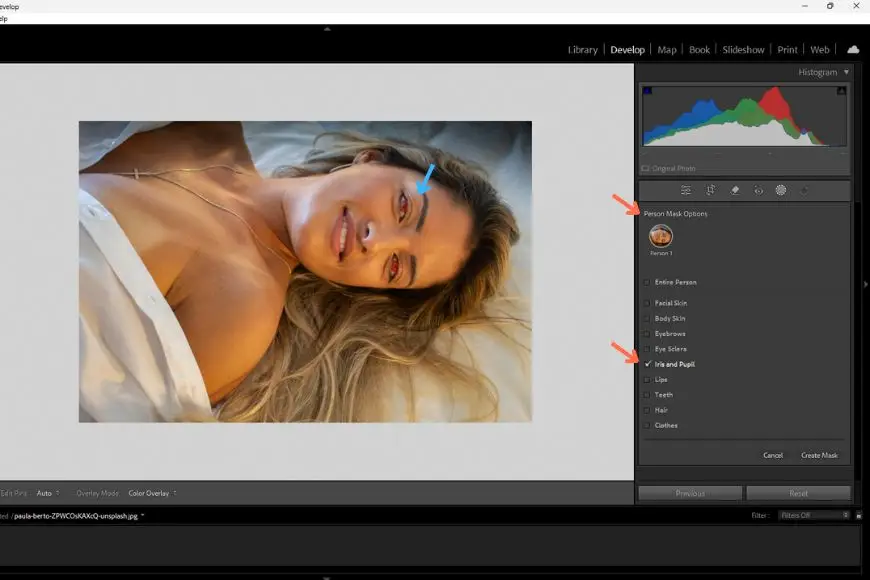
The AI Masking Tool automatically detects subjects, skies, backgrounds, and people within an image. You no longer have to manually brush or lasso an area — AI identifies it in seconds, allowing you to apply precise adjustments like exposure, color, or texture only where you need them.
b. AI Denoise
Low-light photographers love the AI Denoise feature. It uses machine learning to clean up high ISO images while preserving important details like hair and textures — a huge improvement over traditional noise reduction.
c. Generative Fill in Lightroom
One of the most exciting additions is the Lightroom AI Generative Fill tool. Similar to Photoshop’s generative AI, this feature allows users to remove unwanted objects or add new elements seamlessly. For example, if you want to remove a person in the background or extend a cloudy sky, Generative AI in Lightroom Mobile and Desktop does it automatically — producing realistic and natural results.
d. Adaptive AI Presets
The role of AI in Lightroom presets is transformative. Unlike traditional presets that apply uniform settings, AI presets analyze your photo and adapt automatically. For instance, a preset might brighten faces while keeping the background contrast balanced — all without manual adjustments.
e. Lightroom AI Portrait Tools
AI now assists with portrait retouching using automatic face recognition. It detects facial features and offers skin smoothing, eye enhancement, and background blurring, making it easier to create professional-quality portraits.
3. How to Use AI in Lightroom Mobile
Mobile photographers can now experience the same intelligent editing tools found in the desktop version. Here’s how you can use AI in Lightroom Mobile effectively:
- Open Your Image in Lightroom Mobile.
Import your photo and navigate to the Edit tab. - Tap the Masking Tool.
Lightroom’s AI masking automatically detects subject, sky, or background. - Use AI Presets.
Go to the Presets tab and select Adaptive AI Presets like “Enhance Portrait” or “Darken Background.” These automatically apply smart corrections. - Experiment with Generative Fill (Mobile Beta).
The Generative AI Lightroom Mobile feature is rolling out gradually, allowing users to remove unwanted objects with a simple tap. - Save and Export.
Once done, export your AI-enhanced image in full resolution for social media or professional use.
This mobile workflow shows how Lightroom’s artificial intelligence empowers creators to achieve cinematic results anywhere.
4. How to Use AI in Lightroom Classic
For professionals who prefer desktop editing, Lightroom Classic AI tools offer even greater control. Here’s a step-by-step guide:
- Open Lightroom Classic and Import Photos.
Select your images from the Library module. - Activate the AI Masking Panel.
Under the Develop tab, click “Masking” → choose Select Subject, Select Sky, or Select Background. Lightroom automatically creates an editable mask. - Use Generative Fill (Beta).
The Lightroom AI Generative Fill tool allows users to select unwanted elements and replace or remove them seamlessly. - Apply AI Presets.
Try Adaptive Presets under the Preset menu, such as “Enhance Sky” or “Portrait Pop.” These presets automatically adjust exposure, contrast, and tone based on your image. - Fine-Tune with AI Denoise.
For RAW images, right-click → Enhance → Denoise. The AI model removes grain and enhances clarity while maintaining detail. - Export.
Once done, export your photo in your desired format.
These steps showcase how AI in Lightroom Classic brings a balance of automation and creative control.
5. Lightroom AI Presets: What Makes Them Different?
Traditional presets apply a fixed look to all photos, often requiring manual tweaking. AI-powered presets, however, adapt intelligently to the content of your image.
For example:
- A Lightroom AI preset might automatically brighten faces without affecting the background.
- A Dark Vintage AI preset may apply warmer tones only to certain highlights.
This makes Lightroom AI presets more efficient, especially for bulk editing or social media workflows. Many creators now share AI preset packs optimized for mobile and desktop, often free for download.
If you’re looking to start, try searching for “Lightroom AI presets free download” or “adaptive presets for Lightroom Mobile.”
6. Lightroom AI Generative Fill: A Game-Changer
The introduction of Generative Fill in Lightroom is one of the most anticipated AI upgrades in 2025. This tool uses machine learning and content-aware intelligence to analyze the surrounding pixels and fill in missing areas naturally.
Use Cases:
- Removing unwanted objects like trash bins, people, or wires.
- Extending landscapes or skies for better composition.
- Repairing old photos by filling missing corners or details.
Many users wonder, “Does Lightroom have AI Generative Fill?” — Yes, it does! Adobe has confirmed its integration into both Lightroom Mobile and Classic versions.
This feature has blurred the line between Lightroom and Photoshop, allowing photographers to handle retouching, restoration, and manipulation without switching apps.
7. How AI is Transforming Lightroom Presets and Editing
The role of AI in Lightroom presets is changing how photographers work. Instead of relying on hundreds of manual presets, AI can now analyze your editing style and create custom presets automatically.
Some of the top trends include:
- AI-based style learning: Lightroom learns your previous edits and offers smart suggestions.
- Generative editing suggestions: AI recommends color grading based on the scene’s tone.
- AI-based batch editing: Edit hundreds of images with one click — each photo gets its own unique adjustment.
The evolution of Lightroom artificial intelligence is making the app not only smarter but also more personalized and adaptive to your creative workflow.
8. How to Download and Access AI Tools in Lightroom
If you’re wondering how to get started, follow these quick steps to download Lightroom AI features:
- Update Lightroom to the Latest Version.
Visit the Adobe Creative Cloud app and update to the 2025 release. - Sign in with Your Adobe ID.
Don’t have one? You can make a Lightroom ID by registering on Adobe’s website — it’s free and essential for syncing cloud tools. - Access AI Features.
Once installed, open Lightroom and navigate to Masking, Presets, or Generative Fill to start using AI tools. - Download AI Presets.
Many creators share Lightroom AI presets free downloads — always check trusted sources for compatibility and safety.
9. Lightroom AI: The Future of Creative Editing
AI is redefining how we interact with creative software. With Lightroom AI features, photographers can now focus more on artistic storytelling instead of repetitive tasks.
In 2025 and beyond, Adobe aims to:
- Expand Generative AI capabilities.
- Enhance mobile AI workflows.
- Improve AI-powered color grading and tone correction.
This ensures Lightroom remains the most innovative photo editing platform on the market — powered by artificial intelligence and driven by creativity.
Conclusion
The Role of AI in Lightroom in 2025 represents a major leap in digital photography. Whether you’re using Lightroom Mobile or Lightroom Classic, Adobe’s AI features — from Generative Fill to adaptive presets — are designed to simplify your editing process while elevating your results.
By learning how to use AI in Lightroom Mobile and Classic, exploring AI presets, and understanding the power of Lightroom’s artificial intelligence, you can achieve professional-grade edits with minimal effort.
AI is no longer just a futuristic concept — it’s the creative assistant that helps photographers bring their vision to life faster, smarter, and more beautifully than ever before.